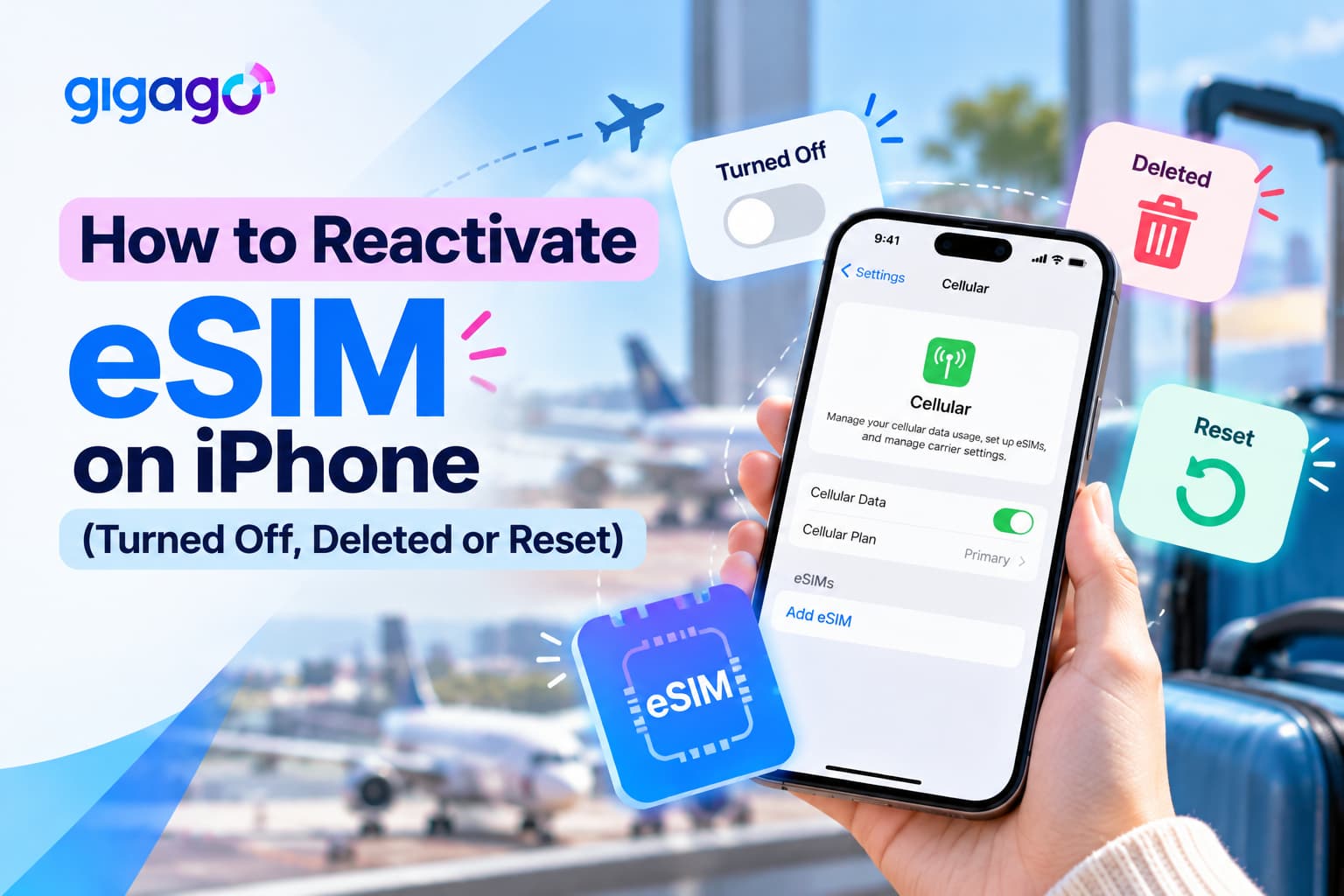
A travel eSIM can stop working on your iPhone because the line was turned off, your data is running through another SIM, or the eSIM was deleted. If the eSIM still appears in Settings > Cellular, you can usually get back online by turning the line on, selecting it for cellular data and checking Data Roaming.
A deleted eSIM can’t be switched back on from Settings. What happens next depends on your provider, so don’t delete an eSIM to fix a connection problem unless your provider tells you to.
Use the quick check below to find your situation, then follow the relevant steps to reactivate your eSIM, fix a “No Service” error, or protect your eSIM before resetting your iPhone.
In this article
Is your eSIM turned off, deleted, or not connecting?
First, open Settings > Cellular on your iPhone. This menu may be called Mobile Data or Mobile Service in some regions. Look for your travel eSIM under SIMs.
If your travel eSIM is still listed, it’s on your iPhone and can usually be turned back on in a few taps. If it’s missing, it may have been deleted, and that can’t be undone from Settings.
What you see on your iPhone
What it likely means
What to do
Your travel eSIM is listed, but the line is off
The eSIM is turned off
Turn the line back on
The line is on, but you see “No Service” or “SOS”
A network or settings problem
Troubleshoot the connection
You have a signal, but apps won’t load
A mobile data, plan, or APN issue
Check your data line, plan, and APN
Your travel eSIM is missing from Settings
It may have been deleted
Contact your provider
The problem started after a reset
The eSIM may have been kept, but some settings may have changed
Check your eSIM and cellular settings
You’ve switched to a new iPhone
The eSIM may not support transfer
Check your provider’s transfer policy
Checking this first matters because each situation needs a different solution. An eSIM that’s still listed may only need a settings change, while a deleted eSIM may require help from your provider.
Important: Don’t delete the eSIM as a troubleshooting step. Apple advises against erasing an eSIM when trying to fix a connection problem unless your carrier recommends it. Gigago’s iPhone setup guidealso advises customers to contact support before removing an eSIM.
If you’ve lost mobile data completely, connect to Wi-Fi at your hotel, a café, or the airport if possible. You can often restore an installed eSIM without Wi-Fi, but you’ll need an internet connection to contact support or download a replacement eSIM.
How do you turn an eSIM back on in iPhone settings?
If your travel eSIM is still listed on your iPhone, follow these steps:
If your travel eSIM is still listed on your iPhone, follow these steps:
Open Settings > Cellular.
Under SIMs, tap your travel eSIM.
Turn on Turn On This Line.
Go back to Cellular and tap Cellular Data. Select your travel eSIM.
Return to your travel eSIM’s settings and open Cellular Data Options (called Mobile Data Options in some regions).
Turn on Data Roaming if your provider’s instructions require it, as Gigago’s setup guide does.
The last two steps are easy to miss. Your eSIM can be switched on while your iPhone continues using your home SIM for mobile data. Likewise, selecting the travel eSIM for data may not be enough to connect if Data Roaming is disabled when your plan requires it.
Check that Data Roaming is enabled on the correct line
Make sure Data Roaming is enabled for your travel eSIM, not your home SIM.
Apple warns that roaming charges may apply when Data Roaming is enabled outside your carrier’s coverage area. Check which line the setting belongs to before leaving Settings.
You can also review two optional settings:
Default Voice Line: Keep your home SIM selected if you want to continue receiving calls and texts on your usual number.
Allow Cellular Data Switching: Gigago recommends turning this off when using a travel eSIM for data, helping prevent your iPhone from switching to your home line for mobile data.
On iOS 26 and later, your iPhone may also display a Turn On Travel eSIM notification when you arrive at your destination. Follow the on-screen instructions to enable the travel eSIM. If you choose to keep both your travel eSIM and current SIM active, you may still incur roaming charges from your home carrier.
Why does your eSIM still show “No Service” after you turn it on?
It can mean the connection hasn’t refreshed yet, data is still going through another line, the plan has run out or expired, or an APN is missing.
Start with the simplest fixes: toggle Airplane Mode, turn the line off and on, and restart. If that fails, check your plan, carrier settings and APN.
Start with the simplest fixes before changing more advanced settings.
Refresh the network connection: Turn Airplane Mode on, wait a few seconds, then turn it off.
Turn the eSIM line off and on: In Settings > Cellular, tap the travel eSIM, turn the line off, then turn it back on.
Restart your iPhone.
Check your plan and data settings. Make sure it still has data, hasn’t expired and covers the country you’re in. You can usually find your plan details in the purchase confirmation email. See our guide to checking whether an eSIM is activated.
Check for a carrier settings update: Go to Settings > General > About. If a carrier settings update is available, your iPhone will prompt you to install it.
Check the APN if your provider specifies one: If your provider lists an APN, check that it’s entered under the eSIM’s Cellular Data Network settings. See how to configure APNs for your eSIM.
Contact support before resetting network settings: If none of the steps above works, contact your eSIM provider before trying more disruptive troubleshooting.
Reset Network Settings should be a last resort. According to Apple, this removes network settings, including saved Wi-Fi networks and VPN settings, and may turn off Data Roaming. Afterward, you may need to reconnect to Wi-Fi, re-enable Data Roaming, and check your APN again..
Be careful not to select Delete All eSIMs, which is a separate option in the reset menu.
If you use Gigago, support is available 24/7 on WhatsApp at +1 657-571-1199. Have your order ID and a screenshot of your Cellular settings ready. Your EID may also help support investigate the issue; you’ll find it under Settings > General > About.
Can you reactivate an eSIM after deleting it?
No, you can’t turn a deleted eSIM back on from Settings because its profile has been removed from your iPhone. Whether you can reinstall it depends on your provider’s policy.
Some providers allow eSIM reinstallation or issue a replacement, while others restrict reuse of the original QR code. Deleting the eSIM from your iPhone does not necessarily cancel the underlying plan, but it may prevent you from using that plan until your provider helps restore access.
For Gigago, the original eSIM QR code can only be scanned once. A deleted Gigago eSIM therefore can’t simply be reinstalled using the same QR code.
If you’ve already deleted your Gigago eSIM:
Don’t keep trying to scan the original QR code.
Contact Gigago through chat, email, or WhatsApp.
Provide your order ID and explain when and how the eSIM was deleted.
Follow support’s instructions on whether a replacement is available.
You can also refer to our Help Center guide on a deleted or lost QR code for the relevant contact options.
If your eSIM is still listed in Settings, don’t delete it just because it isn’t connecting. Try the troubleshooting steps above first.
What happens to your eSIM after a reset or a new iPhone?
It depends on the type of reset you perform. Some resets leave your eSIM installed, while erasing your iPhone gives you the option to keep or delete it.
After erasing your iPhone
When you choose Erase All Content and Settings, your iPhone asks whether to keep or delete your eSIM. The exact wording may vary by iOS version.
If you still need your travel plan, choose the option to keep your eSIM.
If you delete the eSIM during the reset, you may need to contact your provider for a replacement. This is particularly important if you’re traveling and depend on that eSIM for mobile data.
After Reset Network Settings or Reset All Settings
Your eSIM should normally remain listed after Reset Network Settings because removing eSIMs is a separate option. However, Data Roaming may be turned off, and you may need to re-enter network settings.
Reset All Settings restores settings to their defaults without deleting your personal data. After either reset:
Open Settings > Cellular.
Confirm your travel eSIM is still listed and switched on.
Select it under Cellular Data.
Enable Data Roaming if required by your plan.
Recheck your APN if your provider specifies one.
If your eSIM is missing after the reset, contact your provider rather than trying to reinstall it with an old QR code.
When moving to a new iPhone
When moving to a new iPhone
Apple’s eSIM Quick Transfer can move an eSIM between iPhones when the provider supports it and the required device and account conditions are met.
However, Gigago eSIMs are tied to one device once activated and can’t be transferred to another iPhone. If you have an active Gigago eSIM, finish your trip using the original phone or check with Gigago about your options before changing devices.
If you’re planning to upgrade your iPhone, doing so after your trip can help you avoid losing access to your travel data plan.
How do you avoid losing your travel eSIM again?
Turn off the line instead of deleting the eSIM when you don’t need to use it temporarily.
Keep the eSIM when resetting your iPhone if you still need the plan.
Ask your provider before deleting or reinstalling an eSIM.
Save your activation email and order ID so you can contact support if something goes wrong.
Keep a copy of your eSIM instructions somewhere accessible while traveling.
You can generally remove a travel eSIM once its data is used up or its plan has expired, provided you’re sure you won’t need it again. See our guide on when it’s safe to remove an eSIM for more details.
If you only want to stop using it for a while, turning the eSIM off keeps the profile on your phone.
Keep in mind that turning off an eSIM does not pause its validity period. Once the plan’s validity has started, the countdown generally continues even when the line is switched off. The exact start time depends on your plan, so check its activation instructions.
If your plan has expired or you need a new eSIM for your next destination, you can find an eSIM for your destination and install it over Wi-Fi before you go.
Usually, no. If the eSIM is already installed, you can generally turn it back on through Settings without downloading anything. However, installing or reinstalling an eSIM usually requires an internet connection. If your eSIM has been deleted, contact your provider for instructions before attempting to install a replacement.
Will turning my travel eSIM back on affect my home number?
Turning your travel eSIM back on does not change your home phone number by itself. You can generally keep your home SIM for calls and texts while using the travel eSIM for mobile data. Your settings may differ if you select Travel eSIM Only or change your default voice line. See whether installing an eSIM changes your phone number.
Where do I find my EID if support asks for it?
Open Settings > General > About and scroll down. Your EID and IMEI are listed there. Your provider may ask for these details when investigating why an eSIM won’t connect.
Can I reinstall a deleted travel eSIM using the same QR code?
It depends on your provider. Some providers allow reinstallation, while others restrict QR code reuse. Gigago’s eSIM QR codes can only be scanned once, so contact Gigago support if you’ve deleted your eSIM.
Can my iPhone diagnose eSIM problems for me?
Apple provides additional diagnostics through the Apple Support app on supported iOS versions and devices. If your eSIM won’t set up or connect, check the available support options and contact your eSIM provider if the problem persists. Have your order ID and EID ready if requested.
Buying too little data for 15 days in Japan means running out mid-trip, while buying too much wastes money. A typical traveler who uses maps, messaging and social media daily can expect to use around 1GB a day, so a 20GB plan covers roughly 15GB of use with a buffer. Light users can usually manage […]
Before traveling to mainland China, download and set up the apps you’ll need for payments, messaging, maps, transportation and translation. Many familiar services, including Google services, WhatsApp and Instagram, are blocked on standard mainland Chinese networks, so it’s important to prepare alternatives before you arrive. Start with Alipay or WeChat Pay for payments, WeChat for […]
A good navigation app needs to do more than find the fastest route when you’re traveling abroad. You may need offline directions, public transit information, reliable place details, or navigation in a country where some services are restricted. So, which is better for travel: Apple Maps or Google Maps? This guide compares Apple Maps and […]
One of the most common questions travelers have before using an eSIM is “Does time zone affect your travel eSIM’s validity period?” whether changing time zones will shorten their data plan. If you buy a 7-day eSIM, fly across multiple countries, or cross the International Date Line, it’s natural to wonder whether changing time zone […]
The iPhone 18 Pro and iPhone 18 Pro Max are eSIM-only in 12 countries and regions, including the United States, Canada, Japan, and Mexico. Models sold in many other markets, including Europe, the UK, Australia and most of Asia still have a physical nano-SIM tray alongside eSIM support. If you’re traveling internationally with an eSIM-only […]
Short answer: No, if you are visiting multiple countries on a single trip, you do not need to buy a separate SIM card for every border you cross. By installing one regional or global eSIM before you depart, your phone automatically switches to a supported local network as soon as you arrive in a new […]