Using mobile data wisely while travelling starts with understanding where your data goes. Apps can consume data even when you are not actively using them, through automatically playing videos, background photo backups, and app updates. This guide explains how to monitor and reduce your data usage while traveling, identify data-hungry apps, and adjust your settings to make the most of your data plan throughout your trip.
In this article
Why Does Mobile Data Usage Increase While Travelling?
Mobile data usage often increases during trips because you rely more heavily on maps, travel apps, social media, and online services. You may also upload more photos, stream videos during long journeys, or check directions repeatedly throughout the day.
Some data consumption is less obvious. Apps can refresh feeds, download media, sync photos, or update content in the background while your phone is idle. Connected devices can also use your travel data through a personal hotspot.
The key is to identify which activities consume the most data and address those first, rather than restricting every app or changing settings you still need.
What Are the Quickest Ways to Reduce Data Usage While Travelling?
The quickest ways to reduce mobile data usage while travelling are to enable your phone’s data-saving mode, restrict unnecessary background activity, and stop automatic media downloads and photo backups over mobile data. You can save more by reducing video quality and downloading essential content before you travel.
Start with these 5 actions:
Enable Low Data Mode or Data Saver to limit background data activity.
Restrict apps you don’t need while travelling from using mobile data in the background.
Turn off automatic media downloads and photo backups over mobile data.
Reduce video quality and disable autoplay in streaming and social media apps.
Monitor your usage daily to spot unexpected consumption before you run out.
These steps provide a quick starting point. To decide which changes will make the biggest difference, you should understand which apps tend to use the most data and how to check your own usage.
Which Apps Use the Most Mobile Data While Travelling?
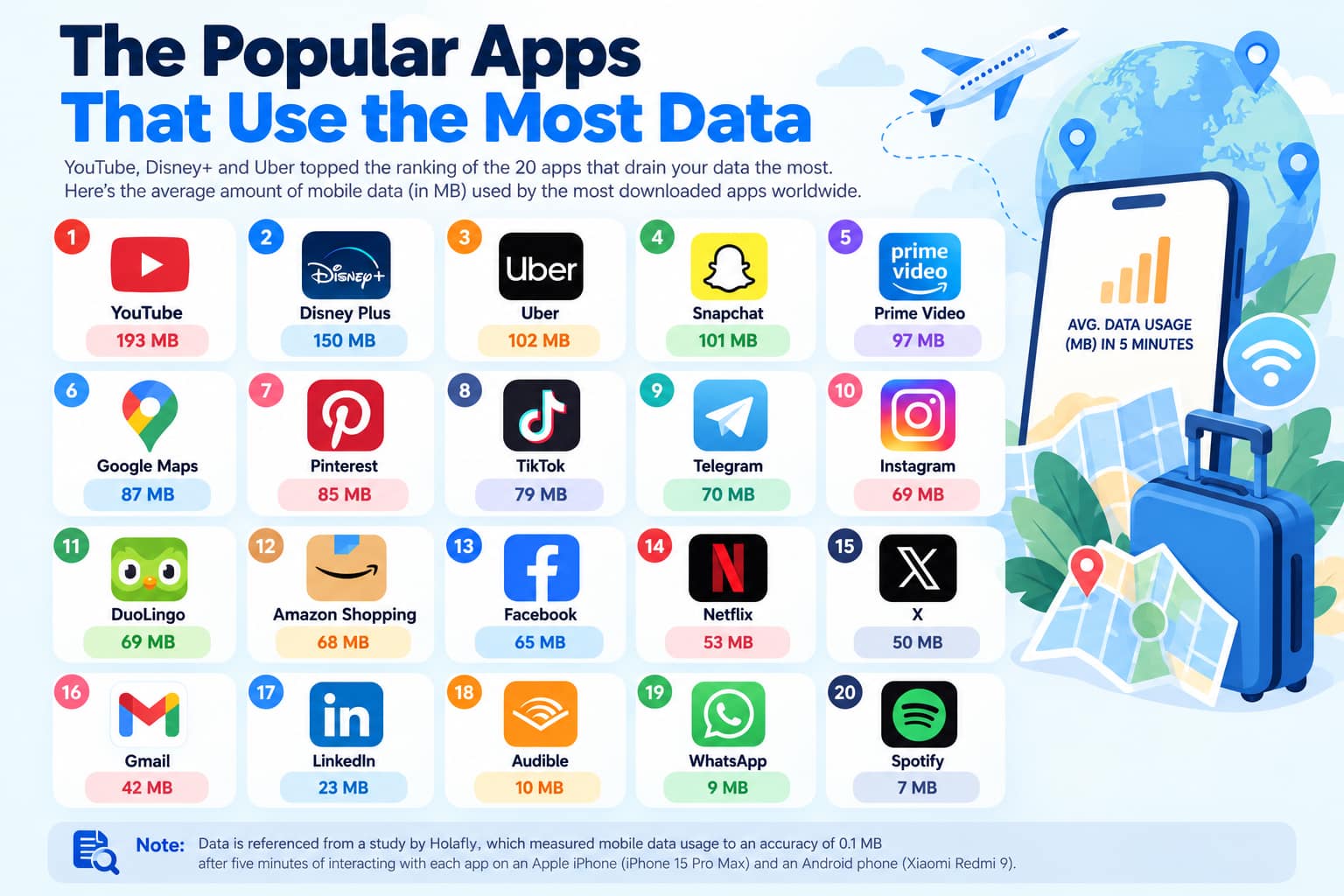
Video streaming, social media, cloud photo backups, and automatic downloads are common sources of high mobile data usage. However, the actual amount depends on your settings, how often you use each app, and the content it loads.
However, the actual amount depends on your settings, how often you use each app, and the content it loads.
App or activity
Why it may use a lot of data
Video streaming and social media
High-resolution videos, autoplay, image-heavy feeds, and media uploads
Cloud photo backup
Automatic uploads of photos and videos
Messaging apps
Automatic downloads of photos, videos, and large files
Maps and navigation
Loading map data and other content while travelling
App updates and downloads
Automatic updates or large file downloads
Personal hotspot
Connected devices streaming videos, syncing files, or downloading updates
The apps you use most aren’t always the biggest data consumers. A photo backup service running in the background or a connected laptop downloading updates may use more data than occasional messaging.
These are common sources to investigate, not a definitive ranking. The next step is to check which apps are actually consuming data on your phone.
How Do You Identify and Reduce Data-Hungry App Usage?
Check your phone’s data-usage report first, then use the results to decide which settings to change. This helps you focus on the apps responsible for high usage instead of restricting everything unnecessarily.
1. Check Which Apps Use the Most Data
On iPhone:
Go to Settings → Cellular (or Mobile Data).
Scroll down to see data usage by app.
Reset the statistics when your trip begins to track usage during your journey.
On Android:
Google Pixel: Go to Settings → Network & internet → SIMs → App data usage.
Samsung Galaxy: Go to Settings → Connections → Data usage → Mobile data usage.
Menu names may vary by device and software version. If you’re using a travel eSIM, check the relevant mobile data line where your phone provides that option.
Review your usage daily and look for:
Apps consuming more data than expected.
Apps using substantial data when you’re not actively using them.
Sudden increases that may indicate automatic downloads, backups, or syncing.
2. Restrict Background Data
Once you’ve identified unnecessary background usage, use your phone’s built-in data-saving controls.
On iPhone:
Enable Low Data Mode under Settings → Cellular → Cellular Data Options. On some 5G iPhones, the option appears under Data Mode.
To restrict background refresh further, go to Settings → General → Background App Refresh and select Off or Wi-Fi.
On Android:
Enable Data Saver in your phone’s network or data-usage settings.
Allow exceptions only for apps that need to remain connected, such as essential messaging or navigation apps.
These features help limit background activity, automatic downloads, and other data use, although their effects vary by app and device. Prioritise apps that use substantial background data but don’t need to remain connected.
Phone-wide data-saving modes help limit background data usage, but the best results come from addressing the settings responsible for excess consumption.
Video and social media: Lower video quality, disable autoplay, and enable data-saving mode where available.
Cloud photo backups: Set automatic backups to Wi-Fi only or pause them while travelling.
Messaging apps: Turn off automatic media downloads over mobile data.
App updates: Set automatic updates to Wi-Fi only.
Focus on the setting that matches the cause. For example, if autoplay videos are consuming too much data, lowering video quality and disabling autoplay will help more directly than restricting background refresh alone.
Apps using the most mobile data while traveling studied by Holafly
How Can You Save More Mobile Data While Travelling?
After addressing data-hungry apps, a few additional habits can help reduce unnecessary data use throughout your trip.
1. Download Content for Offline Use
Download maps, music, podcasts, and videos before your trip to reduce the need for streaming or retrieving content on the go.
In Google Maps, tap your profile picture → Offline maps → Select your own map to download the area you’ll visit.
Keep in mind that offline maps don’t show live traffic, transit, walking, and cycling directions aren’t available offline, and downloaded areas can expire, so check their expiry dates before departure.
For entertainment, check which titles your streaming apps allow you to download, as availability depends on the app and subscription.
2. Use Wi-Fi for Large Downloads
Use reliable Wi-Fi for data-heavy tasks such as app updates and large downloads, photo and video backups, and cloud syncing.
Some phones may switch to mobile data when Wi-Fi is weak, depending on their settings. Therefore, you should check whether automatic mobile data switching is enabled.
When using public Wi-Fi, take reasonable precautions to protect your accounts and personal information.
3. Check Your SIM and Hotspot Settings
If you’re using a travel eSIM alongside your home SIM, make sure mobile data is assigned to the intended line. This helps prevent unexpected usage on the wrong SIM.
Also, check which devices are connected to your personal hotspot. Laptops and tablets can consume significant data through updates, cloud syncing, and streaming.
To reduce unnecessary hotspot usage, you should:
Disconnect devices that don’t need access.
Avoid large downloads and software updates over your travel connection.
Check connected devices if your data usage rises unexpectedly.
How Do You Monitor Data Usage and Avoid Running Out While Traveling?
Check your data usage daily, set a warning below your plan allowance, and use your SIM provider’s balance to track how much data remains. Note that your phone’s counter and your provider’s recorded usage may differ, so leave a margin rather than planning to use every last megabyte.
On Android:
Google Pixel: Go to Settings → Network & internet → SIMs → Data warning & limit.
Samsung Galaxy: Go to Settings → Connections → Data usage → Billing cycle and data warning.
Set the cycle to start on your arrival day and choose a warning threshold below your plan allowance.
For example, on an 8GB plan, you could set a warning at 6GB. Some Android phones can also turn off mobile data automatically when a specified limit is reached.
On iPhone: Go to Settings → Cellular → Tap Reset Statistics when your trip begins. Check total usage each evening.
Resetting the counter helps you track data consumed during the trip, but it doesn’t change your provider’s usage records.
Concurrently, check your SIM/eSIM provider if they have a function checking remaining allowance so you will avoid running out without acknowledgement.
If your data needs change during your trip, you can also exploreGigago’s eSIM plansto find an option that better suits your next journey.
Frequently Asked Questions
Does turning off Background App Refresh save mobile data?
Yes. It can reduce data used by apps that refresh or download content in the background. However, it won’t stop all data usage. Apps may still consume data when you open them, and some services have separate syncing or download settings.
Which apps should I restrict when travelling?
Start with apps that use more data than expected and don’t need to stay connected in the background. Social media, cloud photo backups, video streaming, and apps that automatically download media are worth checking first. Use your phone’s data-usage report to decide which apps to restrict.
Does using Wi-Fi mean I won’t use mobile data?
Not always. Some phones can switch to mobile data when Wi-Fi is weak, depending on the device and settings. Check your phone’s automatic network-switching features if you want to avoid unexpected mobile data usage.
How often should I check my travel data usage?
Check it at least once a day, especially during the first few days of your trip. Daily checks help you spot unusual consumption early and adjust your settings before you run out of data.
Many travelers worry when their eSIM only shows 4G or LTE, or wonder whether they should pay attention to plans labeled 5G. For maps, messaging, ride-hailing and most video calls, 4G/LTE is usually enough, and 5G mostly helps with heavy data use when your phone, plan and local network all support it. This guide compares […]
When you buy a travel eSIM, you usually choose between a plan with a set number of gigabytes and an “unlimited” plan that costs more. If you mostly use maps, messaging and browsing, a fixed plan with some spare data is often the cheaper choice. Unlimited is worth it when you stream, share a hotspot […]
When a flight is delayed or cancelled, a reliable internet connection helps you check airline updates, find rebooking options and notify your hotel or airport transfer about changes to your arrival time. Airport Wi-Fi may be slow or unavailable when you need it, so having mobile data ready before your trip gives you another way […]
eSIM validity is the period during which your data plan remains usable. Depending on the plan, the countdown starts when you install the eSIM by scanning its QR code or when it first connects to a supported network at your destination. Your plan expires when its validity period ends or if you use up the […]
Most travelers want mobile data the moment they land, without uploading a passport or queuing to register a SIM at the airport. The good news is that many data-only travel eSIMs can be purchased online without ID verification. However, some plans, especially those with a local phone number, may require identity verification before you can […]
A travel eSIM can stop working on your iPhone because the line was turned off, your data is running through another SIM, or the eSIM was deleted. If the eSIM still appears in Settings > Cellular, you can usually get back online by turning the line on, selecting it for cellular data and checking Data […]