If you need your laptop online abroad, you don’t have to depend on hotel or café Wi-Fi. Install a travel eSIM on your phone, choose a plan that allows hotspot or tethering, and share the connection with your laptop over Wi-Fi, USB or Bluetooth.
Two things decide how well this works: hotspot support depends on your plan and your phone, and a laptop can use much more data than a phone.
This guide to using a travel eSIM hotspot for your laptop abroad covers what to check before you buy, how much data to plan for and how to set it up. It also shows you how to test your work tools before your first meeting.
In this article
Can you use a travel eSIM as a hotspot for your laptop?
Yes, as long as your eSIM plan allows hotspot or tethering and your phone can share its connection. The eSIM stays in your phone, which shares its mobile data connection with your laptop.
Hotspot availability depends on the specific plan, not just the eSIM provider. For example, Gigago’s Thailand eSIM supports hotspot sharing, while its Vietnam Unlimited Data eSIM does not. Check the details of your chosen plan before purchasing.
Your phone must also support eSIM and be carrier-unlocked. Even when hotspot sharing is allowed, connection quality depends on local coverage, network conditions and your plan’s speed limits.
What should you check before buying an eSIM for laptop work?
Before purchasing an eSIM for laptop work, confirm that the plan covers your destination, supports hotspot sharing, provides enough data and has a validity period that fits your trip.
Use this checklist before you pay:
Hotspot or tethering: Look for an explicit confirmation that sharing data with other devices is supported.
Data allowance: Check whether the plan provides a fixed total, a daily allowance or unlimited data. Find out what happens when high-speed data runs out.
Speed limits: Unlimited data does not always mean unlimited full-speed data. Some plans reduce speed after a daily allowance or apply a fixed speed throughout the plan.
Coverage: Check that the plan covers every country where you need to work.
Validity and activation: Check when the plan starts counting its validity. Depending on the product, this may happen when you install the eSIM or when it first connects to a supported network.
Reading “unlimited” as unlimited full-speed data is an easy mistake. On Gigago, the Europe and China unlimited plans give 1GB of high-speed data per day, then continue at 5 Mbps. Thailand’s Unlimited Lite runs at a steady 10 Mbps, while Unlimited Max has no speed throttling.
For laptop work, these rules matter more than on a phone: by the Zoom estimate below, an hour of video calls can use about 1GB, the whole daily high-speed allowance. After that, 5 Mbps is still above Zoom’s 1.2 Mbps figure for a 720p call on paper, but large uploads will be slow, so save them for Wi-Fi. Our guide to unlimited vs fixed data plans compares the options.
If the plan you want doesn’t allow hotspot, choose one that does, or keep laptop work for a Wi-Fi network you trust.
How much data does a laptop use on a hotspot?
A laptop can use much more data than your phone because it runs desktop apps, installs updates and syncs cloud folders in the background. Video calls add up quickly. At Zoom’s recommended bandwidth, a 720p one-to-one call works out to roughly 0.5GB an hour in each direction, so count your call hours first.
On a laptop you load full desktop websites, open large email attachments and keep folders like OneDrive, iCloud Drive or Dropbox in sync. On a hotspot, all of that comes out of your eSIM plan’s data.
These official bandwidth figures provide a starting point for estimating your needs:
Bandwidth is not the same as data consumption. Mbps measures the rate at which data travels, while GB measures the amount transferred over time.
For context, continuously transmitting data at 1.2 Mbps in both directions for one hour would amount to approximately 1.08 GB combined. This is a theoretical calculation, not a prediction of typical Zoom usage.
To estimate your workday, start with your hours of video calls and count both upload and download. Add room for cloud sync, attachments and updates, then leave a buffer. If you’ll be on calls most days, a daily or unlimited plan is usually easier to manage than a small fixed one.
How do you set up your phone’s hotspot for a laptop?
To connect your laptop, select your travel eSIM as the phone’s mobile data line, enable hotspot sharing and connect your laptop to the resulting network. Before working, confirm that the phone is using the travel eSIM for data rather than your home SIM.
On iPhone
Open Settings > Cellular (or Mobile Service, depending on your iOS version).
Select Cellular Data and choose your travel eSIM.
Return to Settings and open Personal Hotspot.
Turn on Allow Others to Join.
Check the Wi-Fi password shown on the screen.
On your laptop, open Wi-Fi settings, select your iPhone’s hotspot and enter the password if prompted.
If your Mac and iPhone use the same Apple Account, Apple’s Instant Hotspot feature may let you connect through the Mac’s Wi-Fi menu without entering the password manually.
On Android
Open Settings and find SIMs, Mobile network or the equivalent menu for your phone.
Select your travel eSIM as the mobile data SIM.
Open Hotspot & tethering or Mobile Hotspot.
Enable Wi-Fi hotspot and check the network name and password.
On your laptop, open Wi-Fi settings and connect to that network.
Menu names vary by manufacturer and Android version. If you cannot find the option, search Settings for “hotspot” or “mobile data.”
Once connected, open a website on your laptop to confirm that the connection works. If you use a dual-SIM phone, check the active data line before continuing to avoid unintended data usage on your home plan.
Should You Use Wi-Fi, USB or Bluetooth Tethering?
Wi-Fi is the easiest way to connect and works with any laptop. A USB cable suits long work sessions because it can charge your phone while sharing data, and it doesn’t depend on a wireless link. Bluetooth is a backup when neither of the other two works for you.
Check USB compatibility before you rely on a cable. An iPhone can share its connection by USB with a Mac or a Windows PC, but Windows needs the Apple Devices app or iTunes installed. Android USB tethering works with Windows laptops, but not with a Mac.
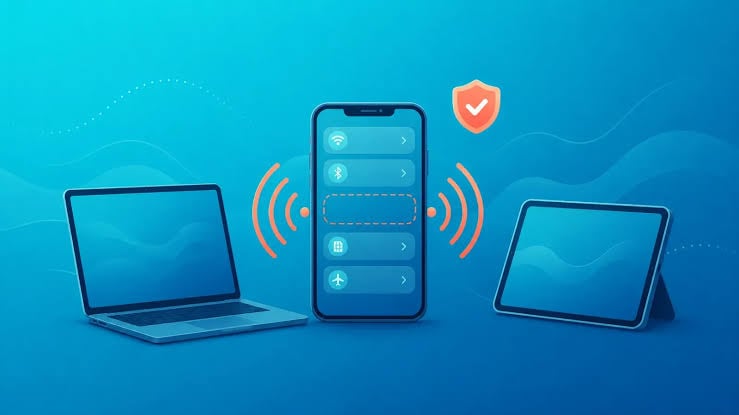
eSIM from mobile phone can be shared to laptops via hotspot feature
What if the hotspot isn’t working?
If your laptop cannot use your phone’s hotspot, first check that the travel eSIM is active for mobile data, the plan supports tethering and the phone itself can access the internet.
Match the symptom to the likely fix:
The hotspot option is greyed out or missing. Turn on cellular data for the eSIM line. If it’s still unavailable, check the plan page to confirm hotspot is supported.
The laptop connects, but nothing loads. Open a website on your phone. If that fails too, the problem is the eSIM connection, not the hotspot. Check the data line and follow your plan’s installation guide, including any Data Roaming setting it mentions.
The connection keeps dropping. Some Android phones have an option that turns the hotspot off when nothing is connected, so check your hotspot settings. A Mac also disconnects from an iPhone hotspot when it isn’t in use. If drops continue, keep the devices close or switch to a cable, which also keeps your phone charged.
It’s slow. You may have used your daily high-speed allowance, the signal may be weak, or several devices may be sharing the connection.
It still won’t connect on iPhone. Apple suggests turning on Maximize Compatibility in the Personal Hotspot settings.
Running a hotspot drains your phone’s battery, so Google recommends keeping the phone plugged in while tethering and turning the hotspot off when you’re done.
How do you stop your laptop from using too much hotspot data?
Tell your laptop it’s on a limited connection. Set your phone’s hotspot as a metered connection in Windows, or turn on Low Data Mode for it on a Mac. Then pause cloud sync and large downloads until you’re back on Wi-Fi, where they won’t eat into your plan.
On Windows
On Windows 11, go to Settings > Network & internet > Wi-Fi, select your phone’s hotspot and turn on Metered connection.
On Windows 10, open the network’s Properties and turn on Set as metered connection.
Windows Update then downloads only priority updates automatically, and Microsoft Store downloads may pause.
On a Mac
Open System Settings > Wi-Fi, click Details next to your phone’s hotspot and turn on Low data mode. Apple describes it as a way to reduce data use on that network.
Do the metered or Low Data Mode step as soon as the laptop first joins your hotspot. A laptop that hasn’t been online for a while may start downloading updates straight away. It also helps to install system updates before you leave, pause cloud storage apps on the hotspot, and turn your camera off when you’re only listening in a meeting.
Is a phone hotspot reliable and secure enough for work?
It can be, but test it before you depend on it. Call quality depends on the local signal, network load and your plan’s speed rules. A password-protected hotspot limits who can join your network to people who have the password, but your company’s VPN and security rules still apply.
Hotel Wi-Fi isn’t automatically unsafe. The US Federal Trade Commission says public Wi-Fi is usually safe today because most websites and apps encrypt your data. A hotspot’s advantage is control: you set the password and can switch the network off when you finish. If your employer requires a VPN on every network, use it on your hotspot too.
Get a hotspot-ready Gigago eSIM before you fly
Pick your destination on Gigago’s Buy eSIM page and open the plan you need. Before you pay, check the Hotspot/Tethering line, the data type and when the validity starts. Then install the eSIM at the time the plan page recommends, and test the hotspot with your laptop.
Note: You cannot install a Gigago eSIM on your laptop because it is compatible to phones and tablets only. Install yours on your phone and share its connection with your laptop through the hotspot.
Travel eSIM plans typically offer limited validity periods, often around 30 days, and many providers require QR codes to be installed within a set period after purchase. So, can you use an eSIM for more than 30 days and stay connected on a 60- or 90-day trip without wasting data or losing connectivity? This guide […]
Using mobile data wisely while travelling starts with understanding where your data goes. Apps can consume data even when you are not actively using them, through automatically playing videos, background photo backups, and app updates. This guide explains how to monitor and reduce your data usage while traveling, identify data-hungry apps, and adjust your settings […]
Many travelers worry when their eSIM only shows 4G or LTE, or wonder whether they should pay attention to plans labeled 5G. For maps, messaging, ride-hailing and most video calls, 4G/LTE is usually enough, and 5G mostly helps with heavy data use when your phone, plan and local network all support it. This guide compares […]
When you buy a travel eSIM, you usually choose between a plan with a set number of gigabytes and an “unlimited” plan that costs more. If you mostly use maps, messaging and browsing, a fixed plan with some spare data is often the cheaper choice. Unlimited is worth it when you stream, share a hotspot […]
When a flight is delayed or cancelled, a reliable internet connection helps you check airline updates, find rebooking options and notify your hotel or airport transfer about changes to your arrival time. Airport Wi-Fi may be slow or unavailable when you need it, so having mobile data ready before your trip gives you another way […]
eSIM validity is the period during which your data plan remains usable. Depending on the plan, the countdown starts when you install the eSIM by scanning its QR code or when it first connects to a supported network at your destination. Your plan expires when its validity period ends or if you use up the […]