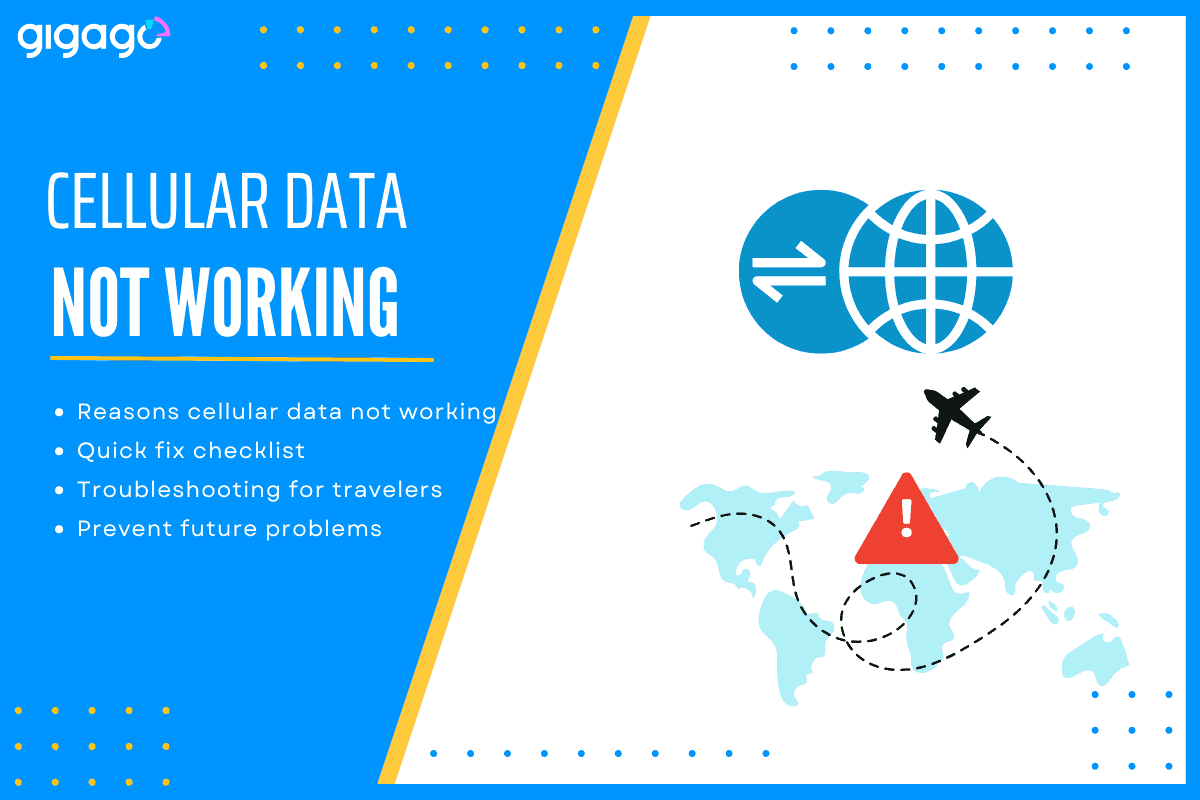
When you are traveling abroad, nothing is more frustrating than seeing “No Internet Connection” or having signal bars but no internet just as you’re trying to open maps or message someone.
If your cellular data stops working, don’t panic — most problems are easy to fix. Whether you’re using a local SIM or an international eSIM like those from GIGAGO, there are practical steps you can follow to restore your connection quickly.
This article explains the most common reasons cellular data stops working, a quick troubleshooting checklist, and specific tips for international travelers using eSIMs.
Golden rule: If you are using eSIM from GIGAGO (or most other providers), never delete your eSIM profile while troubleshooting unless instructed by support (as most QR codes are single-use).
In this article
I. 7 Common Reasons Your Cellular Data Isn’t Working
1. Mobile Data Is Turned Off: Your phone’s “Mobile Data” switch might be off from a previous setting or after turning on airplane mode.
2. Weak or No Network Signal: If you’re in a remote area, or an indoor space with poor coverage, your device might struggle to connect to the cellular network.
3. Airplane Mode Is Enabled: If you just landed from a flight, double-check that you’ve turned it off.
4. Incorrect APN (Access Point Name) Settings: APN settings tell your device how to connect to the internet. If your eSIM or SIM has outdated or wrong details, your data won’t work.
5. Data Plan Expired or Out of Balance: If your plan has run out of data or expired, you won’t get internet access even with good coverage. Always confirm your plan’s status.
6. SIM or eSIM Not Activated Properly: Sometimes activation takes a few minutes after installation, or the process may not have completed successfully.
7. Network Issues from Carrier Side: Occasionally, the problem lies with the local carrier. Temporary outages can disrupt data access even if everything seems fine on your device.
II. Quick Fix Checklist to Try First
1. Restart Your Phone
Restarting resets the device’s connection to the cellular network and solves many short-term glitches.
2. Toggle Mobile Data and Airplane Mode
Turn off mobile data, wait a few seconds, and turn it back on. Do the same with airplane mode — switching it on and off reactivates your signal.
3. Reinsert or Reactivate Your eSIM
For physical SIM users, remove and reinsert the SIM card. For eSIM users, switch the eSIM off and on through settings.
If using Dual SIM, try temporarily disabling your primary (home) SIM to see if there is a conflict.
4. Make Sure Mobile Data Is Enabled for Your Chosen Line
On dual-SIM or dual-line phones, ensure your eSIM or travel line is selected under “Default for Mobile Data.”
5. Switch to 4G/LTE Instead of 5G
Some regions have limited 5G coverage. Setting the network mode to 4G often restores data quickly.
6. Manually Search for Available Networks
Go to your network settings, search for available providers, and connect to the one recommended for your region.
If your data still doesn’t work after these steps, it’s time to look at travel-specific troubleshooting.
III. Cellular Data Troubleshooting for international travelers
1. Check if international roaming is enabled
If you’re using your home SIM or eSIM, ensure “Data Roaming” is turned on. Without it, your phone cannot connect to international networks.
For iOS: Go to Settings > Cellular > [Your eSIM] > Data Roaming (Toggle ON).
For Android: Settings > Network & Internet > SIMs > [Your eSIM] > Roaming (Toggle ON).()
2. Select the right local network manually
Sometimes, your phone doesn’t automatically connect to the local carrier.
To fix this:
Go to Settings > Mobile Network > Network Operators
Turn off “Automatic selection”
Wait for a list of networks to appear
Choose the local network that the SIM/eSIM provider recommends for your destination
Each GIGAGO eSIM plan automatically connects to the partner network with the best coverage, but in rare cases, a manual selection helps reestablish data service.
3. Check Your Data Plan (Local vs. global eSIM)
Not all eSIM plans work in every country.
Local eSIMs only cover specific destinations. If you bought a “Japan-only” eSIM but have traveled to Korea, the data will stop working immediately.
IV. What if your cellular data is still not working
If you have restarted your phone, turned on roaming, and manually picked a network but still have no internet, it is time to ask for help if you are offline for more than 15 minutes.
Prepare information before contacting support
To get a fast fix, have these details ready for the support agent:
Your Order Number: The ID from your purchase email.
Screenshots: Take a picture of your “APN” settings and your “Cellular” menu.
Your Location: Tell them exactly which city and country you are currently in.
Reach support team
If you are using a Gigago eSIM, you have access to expert help 24/7.
Use WhatsApp or Email: Since you may not have data, find a hotel Wi-Fi and message Gigago via their official WhatsApp or support email.
Ask for a “Reset”: Sometimes the support team can refresh your connection from their side, which fixes the problem instantly.
V. How to prevent future cellular data problems
1. Keep your phone and carrier settings updated
These updates often include “Carrier Settings” which help your phone connect to newer, faster towers around the world.
2. Regularly monitor your data balance
Check your data usage every morning. Many eSIM apps let you see exactly how much data you have left so you don’t run out in the middle of a long train ride or hike.
3. Avoid deleting or modifying eSIM profiles unnecessarily
If you “Remove” an eSIM from your settings, it is usually gone forever, and you will have to buy a new one.
4. Use reputable eSIM providers like Gigago
Stick with trusted providers like GIGAGO for reliable coverage and technical support.
If you purchased your eSIM through GIGAGO, contact our 24/7 customer support through:
When you’re traveling abroad, staying connected is essential. You need reliable internet for maps, language translation, ride-hailing apps, or staying in touch with family and friends. But, what speed should you actually expect when traveling abroad? Let’s break down what “normal” mobile internet speed looks like, why it matters, how to test your connection, and […]
When traveling to Thailand, staying connected is essential. Whether you’re navigating Bangkok’s lively streets, sharing beach photos from Phuket, or working remotely from Chiang Mai, you’ll need reliable internet. For Australian travelers, two popular options come to mind: But which gives better value, speed, and convenience? Let’s break it down. I. What is Optus International […]
If you are a Verizon customer, one big question probably comes to mind: “Should I just use Verizon’s $12/day Travel Pass, or try a local Vietnam eSIM?” At first glance, Verizon roaming with International Travel Pass sounds convenient — no SIM change, no setup hassle. But at $12 per day, is it really the best […]
When you shop for a travel eSIM or glance at your phone’s status bar, you will often see your phone show network types like “LTE”, “4G”, or sometimes even “5G”. Most people just assume it means “fast internet” and move on – which is fair enough, but there’s a bit more to it than that. […]
In today’s connected world, mobile number is more than just a way to call or text – it’s also a key to accessing important accounts like banking, email, and social media. Unfortunately, that makes it a valuable target for cybercriminals. One increasingly common threat is SIM swap fraud and for international travelers, understanding it is […]
A Beijing layover is a great chance to explore, but China’s “Great Firewall” makes staying connected tricky. Without the right plan, you’ll likely find blocked access to essential apps like Google Maps, WhatsApp, and even your banking tools. Whether you have a few hours or a full day, choosing the right connectivity option is key. […]